
smoovplay/smoovplay
Your console. Your GPU. Smoother gameplay. Open-source real-time frame generation & upscaling for console gaming.
Thành tựu nổi bật
Những danh hiệu mới nhất của dự án
#1 Repository Của Ngày
#1 Repository Của Ngày
#1 Repository Của Ngày


Your console. Your GPU. Smoother gameplay.
Play 30 fps console games at 60, 90 or up to 120 fps on your PC, with real-time AI frame generation and upscaling.
⬇ Download for Windows · ▶ Watch it at full frame rate · What it does · Install · How it works · FAQ




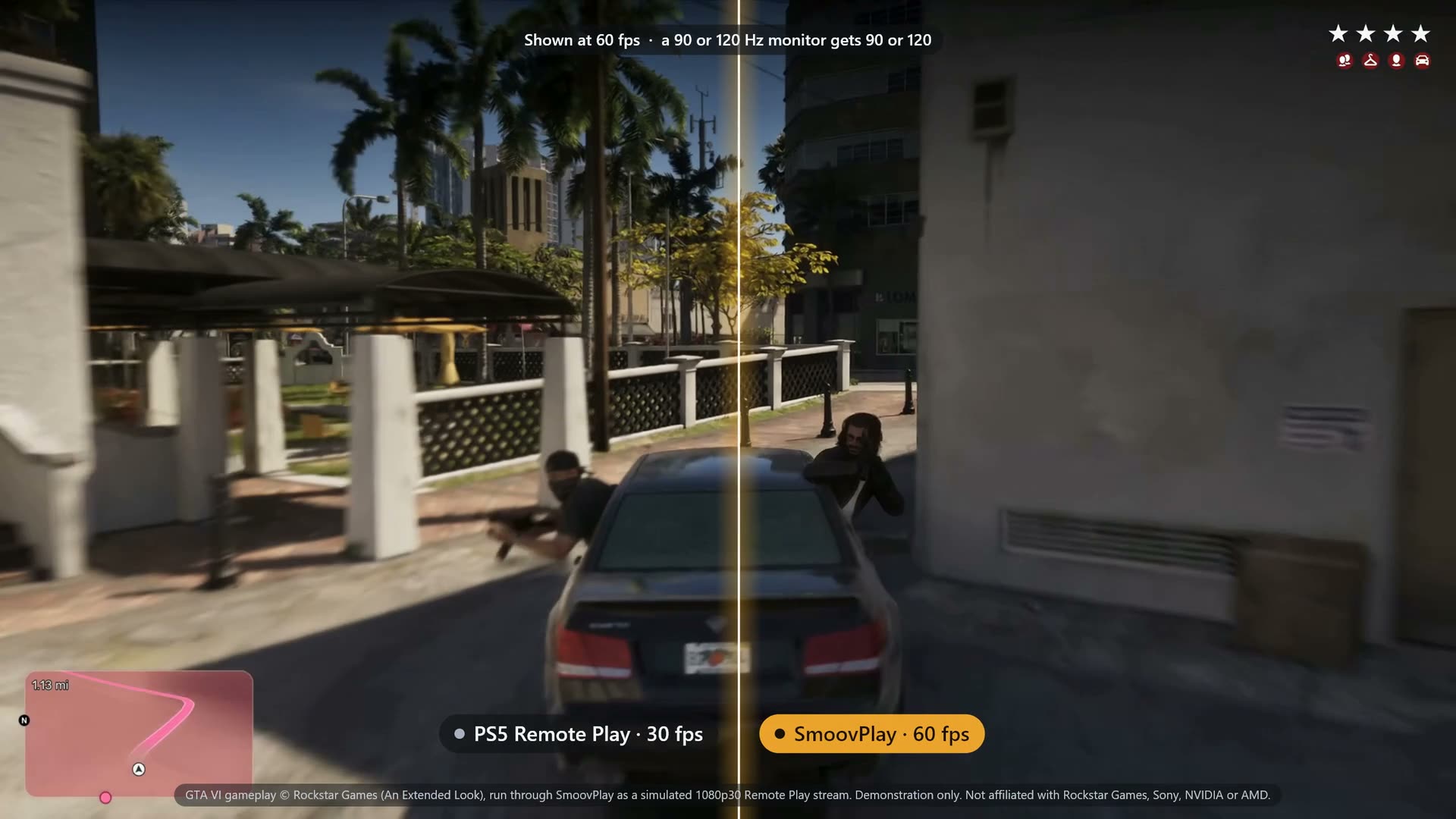
▶ See six clips at full frame rate: split, side by side, or flip between the 30 fps stream
and SmoovPlay at 60 or 90 fps, played at their real frame rate. Most social sites play video at 60 fps or less.
GTA VI gameplay © Rockstar Games (An Extended Look), run through SmoovPlay as a simulated Remote Play stream.
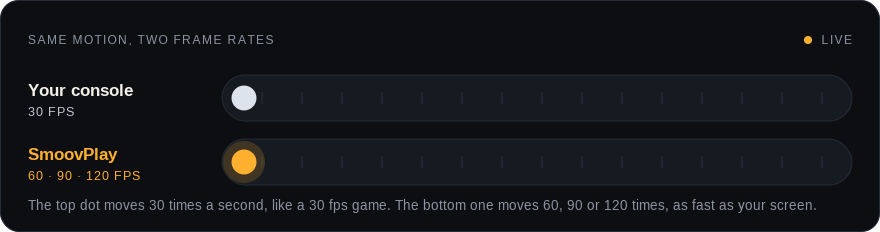
SmoovPlay streams your console to your PC, where your graphics card draws new frames between the ones the game sends, live. A 30 fps game plays at 60, 90 or up to 120 fps to match your screen, sharpened to fit it. There's nothing to install on the console, and it's free and open source.
What it does
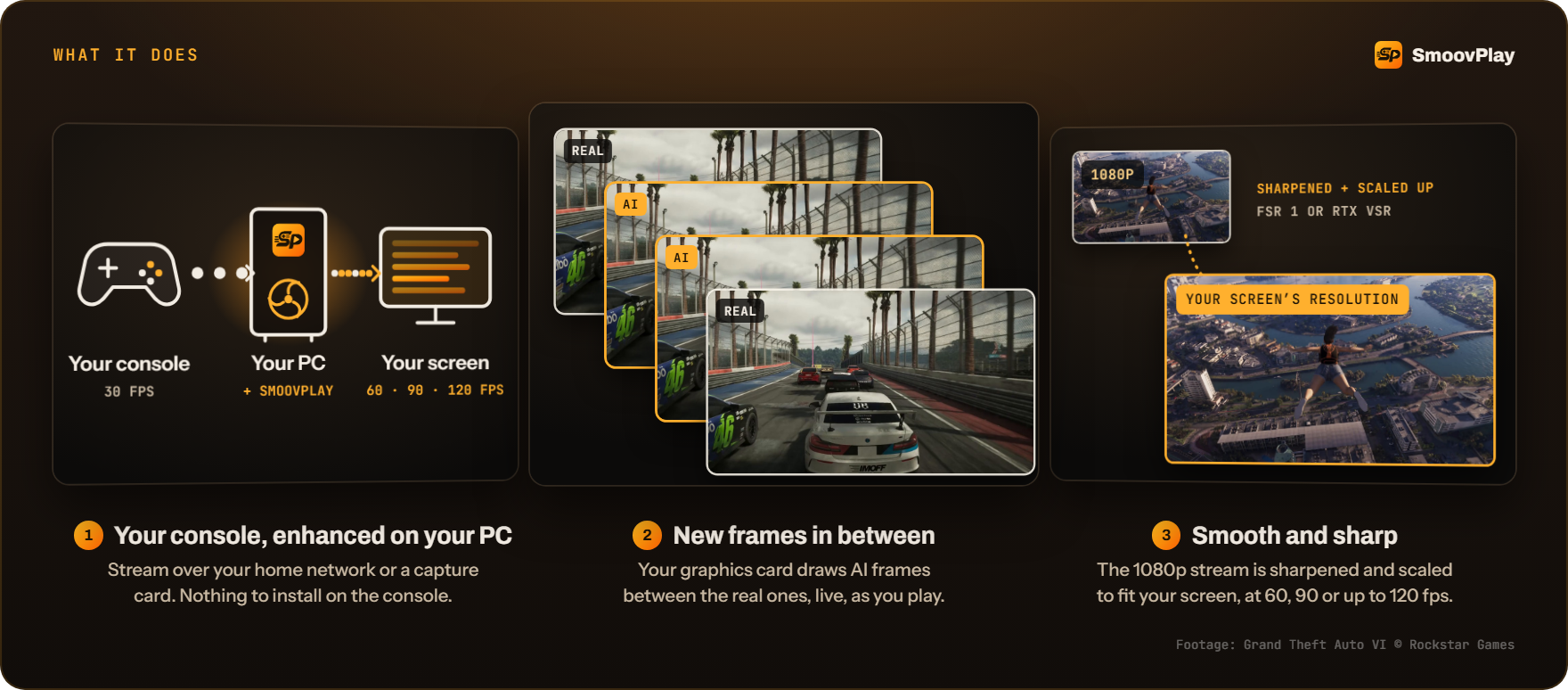
- Up to four times the frames. RIFE, an open-source AI model, draws 1, 2 or 3 new frames between each pair the game sends, in about 9 ms each on an RTX 4070 Ti SUPER.
- Sharper on big screens. The 1080p stream is sharpened and scaled to your monitor by AMD FSR 1 (in 0.1 ms) or NVIDIA RTX Video Super Resolution.
- Works with what you have. A PS5 streams over Remote Play on your home network, through the open-source chiaki-ng, and your controller connects to the PC. An Xbox through its app, or any console through a capture card, are Experimental options.
- Instant replay. Press R to save the last 30 seconds to 5 minutes as an MP4, at the frame rate you see and with the game's sound. B saves a before & after video.
- Looks. Restyle the picture live: start from 14 looks, like Golden hour or Noir, or build your own.
- One installer. It checks your PC, helps fix anything that's off, downloads the AI runtime from official sources and walks you through connecting your console. 10 to 20 minutes, once.
- Free and open. MIT licensed. No account, ads or tracking: it only talks to GitHub, for updates.
Works with
| Status | |
|---|---|
| PS5, over Remote Play | Tested. The recommended way. |
| NVIDIA GeForce RTX 30, 40 and 50 series | Tested on an RTX 4070 Ti SUPER. RTX 20 cards and laptops aren't tested yet. |
| Xbox and other streaming apps, by capturing the app's window | Experimental. Tested with a stand-in window, not the Xbox app yet. |
| Any console over HDMI, through a capture card | Experimental. Tested with recordings standing in for a card. |
| HDR from a PS5 (from 0.2.0) | Experimental. Tested with a stand-in HDR stream, not a real PS5 yet. HDR output not yet on an HDR screen. |
| AMD Radeon and Intel Arc, through DirectML | Experimental. The same frames, about 1.7× more slowly. Not on a real card yet. |
Get it
[!NOTE] Early release: expect rough edges, and please report them. SmoovPlay offers new versions itself, and updates in one click.
| You need | |
|---|---|
| PC | Windows 10 or 11 (64-bit), 8 GB of memory, 12 GB free during setup |
| Graphics card | NVIDIA GeForce RTX 30, 40 or 50 series. AMD Radeon and Intel Arc as an Experimental option. |
| Console | A PS5 with Remote Play turned on. Or, Experimental: a console through a capture card, or a game streamed to an app on this PC. |
| Network | Ethernet for the console and the PC, or 5 GHz Wi-Fi (not needed with a capture card) |
| Screen | Any: 60 Hz gets 60 fps, 90 Hz gets 90, 120 Hz or faster gets up to 120. G-Sync or FreeSync helps. |
1. Install. Download SmoovPlay-Setup.exe from Releases
and run it. It isn't code-signed yet, so your browser and Windows warn you first:
here's how to get past it. Setup takes 10 to 20 minutes and never asks for admin rights.
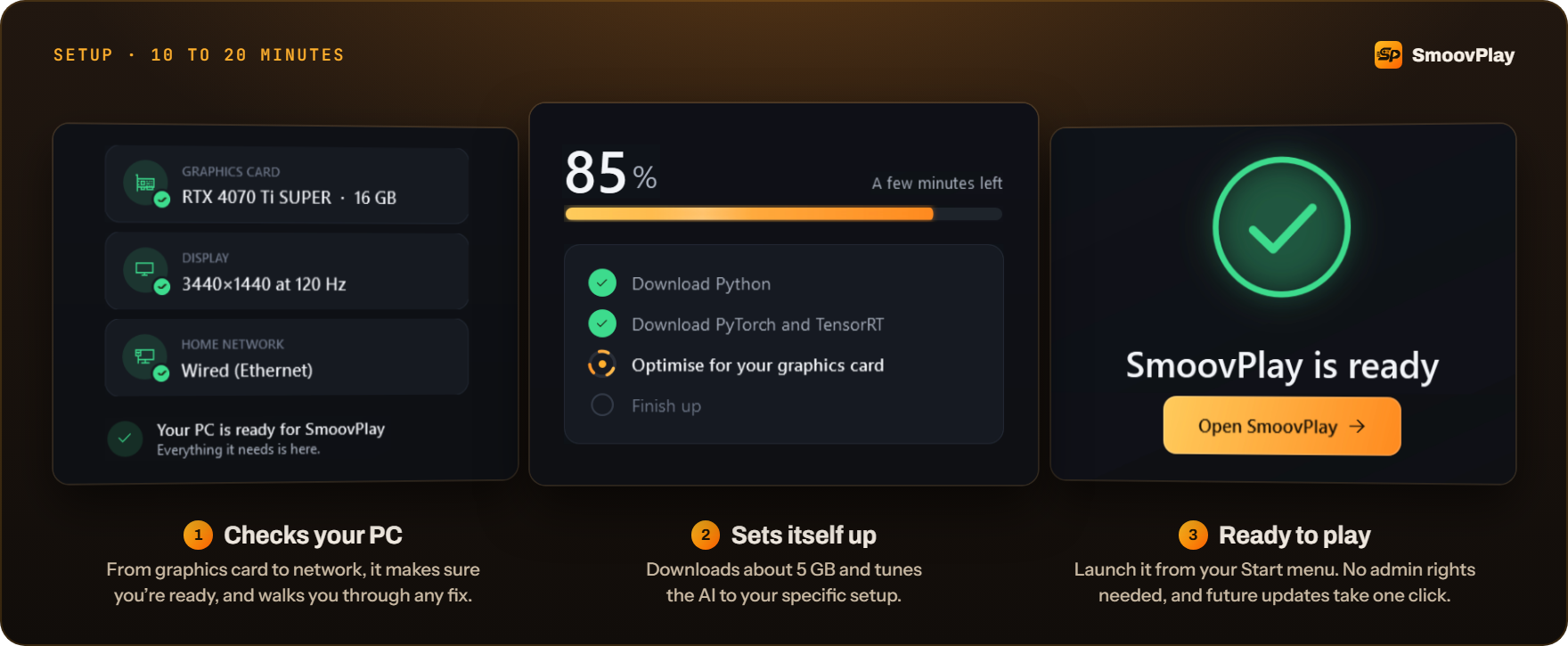
Setup ends by picking settings for your PC, from a short test of your graphics card and display. To check again, say after changing the display, press Auto-detect on the Settings page.
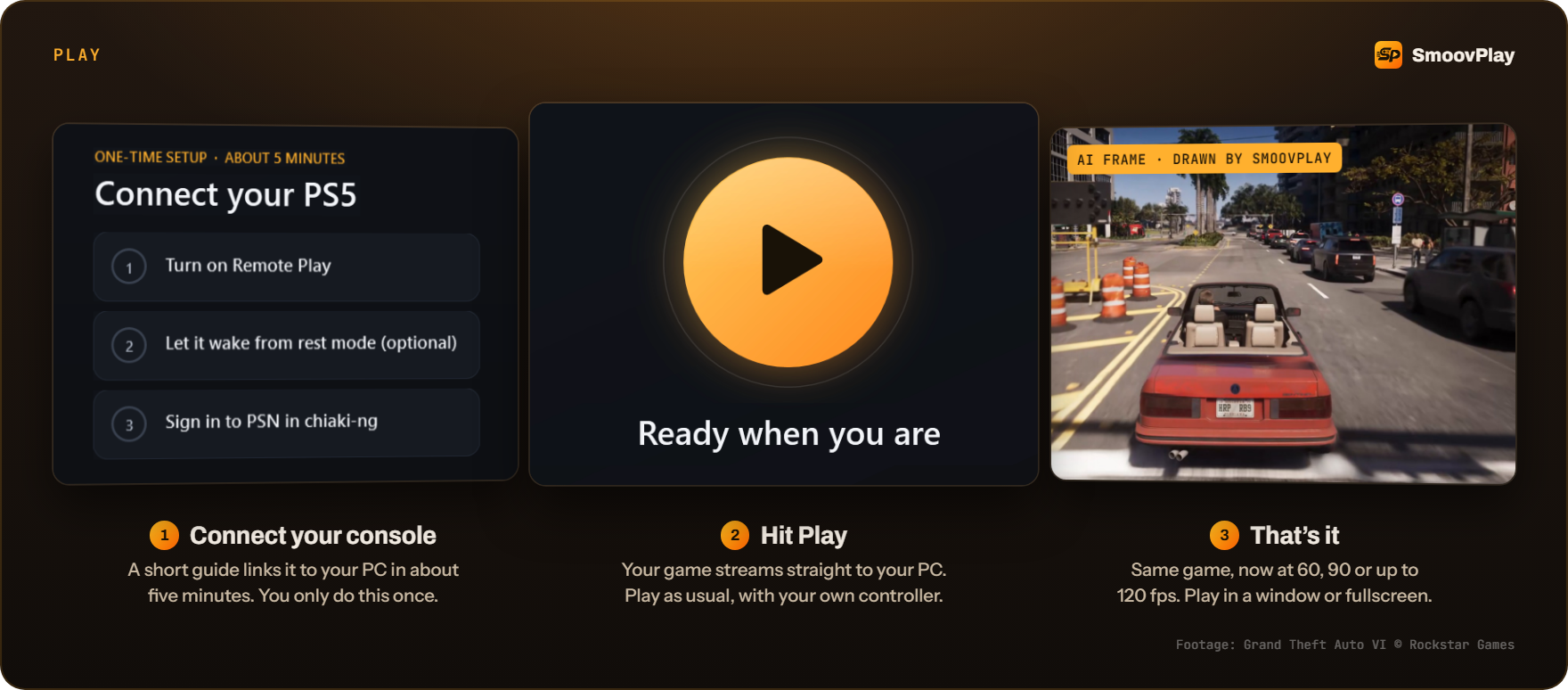
2. Connect your console, then play. For a PS5, follow Connect your PS5 in the app: turn on Remote Play, sign in to PSN in chiaki-ng and register the console. About five minutes, once. For an Xbox or a capture card (Experimental), pick App window or Capture card on the Play page. Then press Play.
Windows says "Windows protected your PC"
SmoovPlay isn't code-signed yet, and Windows' SmartScreen warns about new programs that have no download history. So the first time, you get past two warnings:
- Your browser may say the file isn't commonly downloaded. Choose to keep it. In Edge: ⋯ → Keep → Show more → Keep anyway.
- Windows says "Windows protected your PC" when you run it. Click More info, then Run anyway.
Setup installs for your Windows user only, so it never asks for admin rights. To be sure you have the real file,
download it only from this repo's Releases page and compare its
SHA-256 with the one listed there (Get-FileHash .\SmoovPlay-Setup.exe in PowerShell). Updates from inside the app
must carry SmoovPlay's signature before they run.
Make it yours
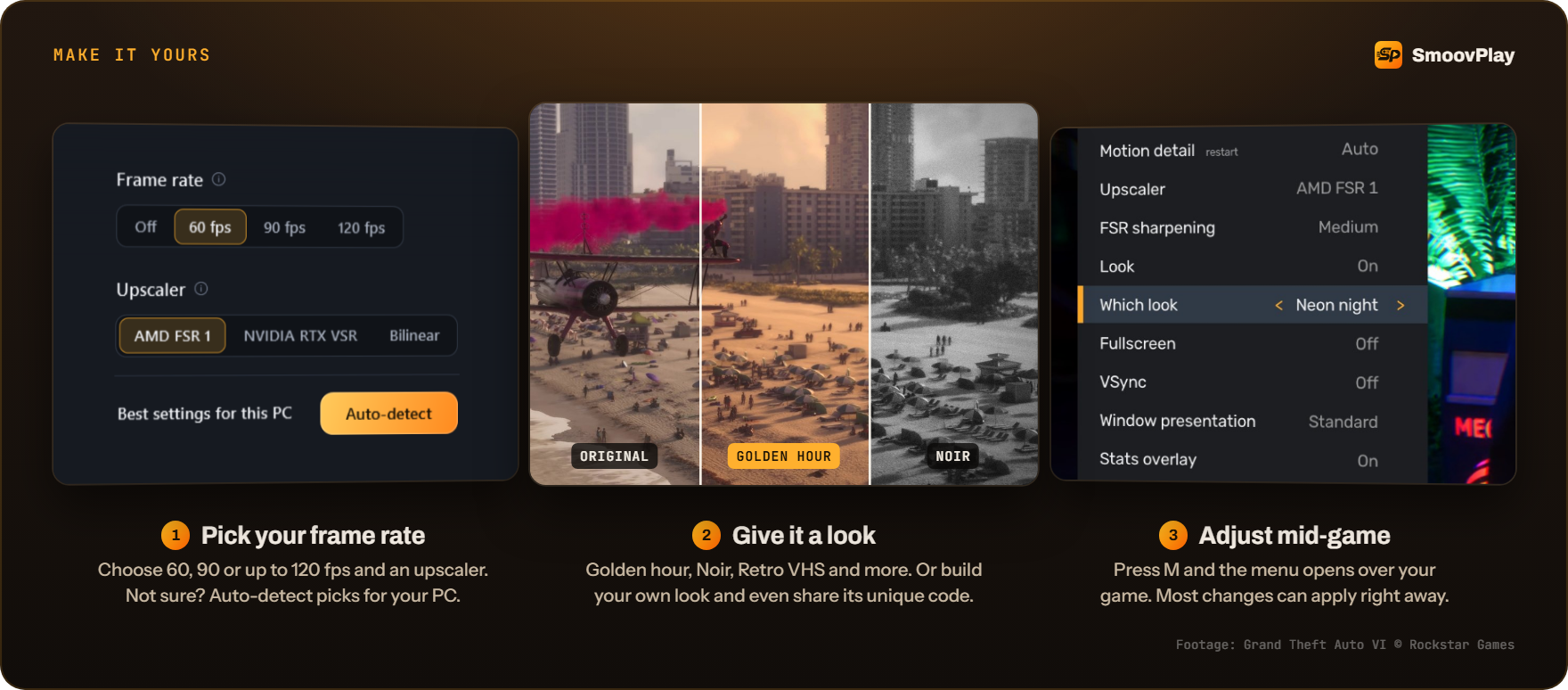
- Settings apply as you play. Change the frame rate, upscaler or AI model on the Settings page, or press M in the video window. Auto-detect suggests the best for your PC, with the reason for each.
- Looks put a grade on the picture: a stack of effects applied top to bottom, like a color grading app's nodes. Start from one of 14 (Cinematic, Film, Noir, Retro VHS...), save your own, and share it as a short code.
- Instant replay keeps the last 30 seconds to 5 minutes of what you played (off until you pick a length). Your graphics card's video encoder records it, and saving takes a second or two.
| In the video window | |
|---|---|
| M | Menu: every setting, live |
| F | Fullscreen, for the lowest delay |
| I | Frame generation off and on, to compare |
| R · B | Save the instant replay · a before & after video (Ctrl+Alt+R · Ctrl+Alt+B from any window) |
| K · J | Look off and on · next look (Shift+J goes back) |
| S · U | Stats overlay (off, minimal, detailed) · next upscaler |
| L | Delay test (PS5 Remote Play) |
| Esc or Q | Stop |
How it works
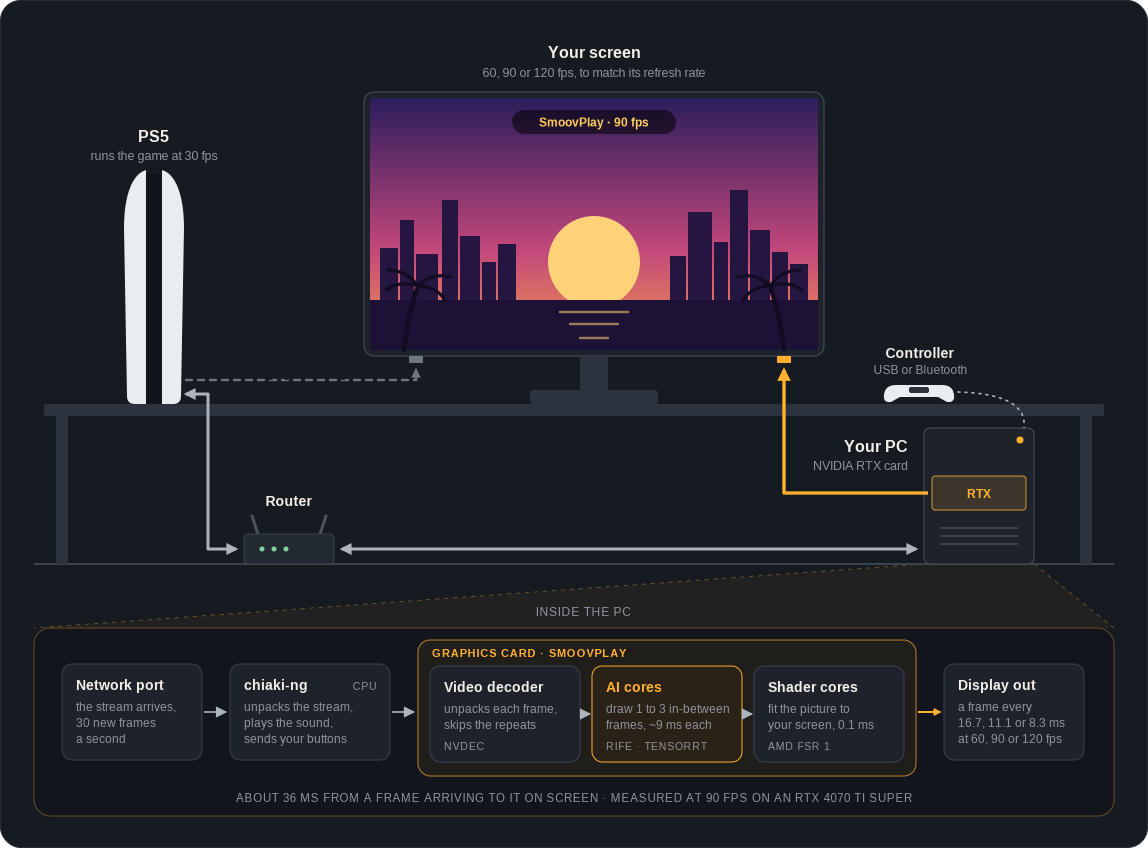
With a PS5, the tested setup, the console and the PC talk over your home network, the way Sony's Remote Play app
does. chiaki-ng receives the stream, plays the sound and sends your buttons back. A small patch to it, the frame tap
in chiaki_tap/, also hands every video frame to SmoovPlay. SmoovPlay decodes it on the graphics card,
skips repeated frames, draws the in-between ones with RIFE through TensorRT, scales the result with FSR 1 and shows
it at your screen's refresh rate. With an Xbox app window or a capture card (Experimental), the frames come from the
captured window or the card instead, and the rest is the same.
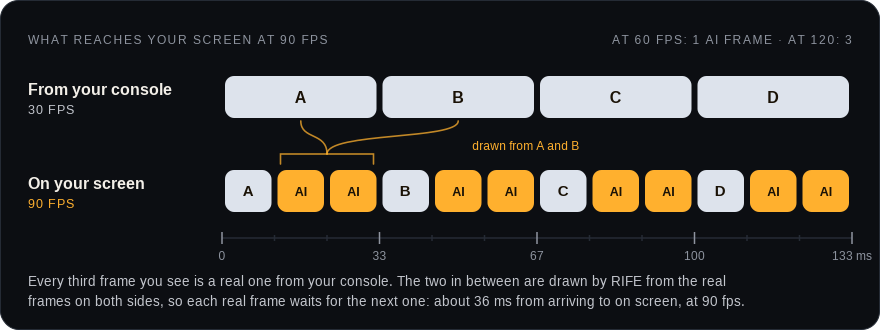
The timeline shows 90 fps. At 60 fps there's one AI frame between each pair of real ones, and at 120 fps three.
Good to know
- Smoother, not faster. The extra frames are generated: motion gets smoother, but the game still responds like 30 fps, and a little later than without SmoovPlay. Great for driving, exploring and story missions; not for competitive online play.
- About 36 ms of delay at 90 fps (about 20 ms at 60 fps), on top of Remote Play's own. About 22 ms of it is the wait every frame generator has: each real frame is held back while the in-between frames before it are shown. Press L in the video window to measure your setup.
- 1080p. Remote Play arrives at 1080p, so the picture is a little softer than HDMI straight from the console.
- HDR (Experimental, from 0.2.0: Settings → HDR, off by default). For a PS5 streaming in HDR: pick the H.265 HDR codec in chiaki-ng, then turn HDR on. On, shown in SDR gives the stream its real colours on any monitor. On, HDR output keeps it HDR all the way to a monitor with Windows' HDR on, with Looks and RTX VSR off. Both have been tried with a stand-in for a PS5's HDR stream, not a real one yet, and HDR output has been checked by reading back the 10-bit picture it sends, not on an HDR screen. Instant replay clips are saved in SDR either way.
- Some wobble. HUD text over fast motion, very fast camera turns and thin objects crossing each other can wobble a little. Press I to compare with frame generation off.
- Sound stays in step. chiaki-ng holds the sound back by as long as the picture spends in SmoovPlay.
- 60 fps games pass through unchanged: there are no gaps to fill. Try one anyway with test mode.
- Games between 40 and 60 fps stutter over a 60 Hz stream. Even out 40-60 fps (on by default, Experimental) spaces their frames evenly, for about one frame (17 ms) more delay.
- One frame generator at a time. Leave NVIDIA Smooth Motion, AMD Fluid Motion Frames and Lossless Scaling off for SmoovPlay and chiaki-ng. Your other games aren't affected.
Help test it
SmoovPlay is new, so finding what breaks is the most useful help right now:
- Your graphics card: which does it hold, 60, 90 or 120 fps?
- Other games: anything with a 30 fps Quality or Fidelity mode, or one that runs between 40 and 60 fps.
- Your setup: Wi-Fi or wired, and your monitor's refresh rate.
- The Experimental options: an Xbox through the Xbox app, a capture card, another app's window, or an AMD or Intel card. None has met the real hardware yet, so any report helps, even "it didn't start".
Report bugs and feedback in Issues. In the app, Help → Copy diagnostics copies your PC and settings details: paste them in with the game and what happened.
Only have 60 fps games? Use test mode
Press Test with a 60 fps game on the Play page. SmoovPlay leaves out every other frame, so the game arrives like a 30 fps game, fills the gaps as usual, and scores each AI frame against the real frame it replaced. Play a few minutes with some fast motion, then press Q: a results card says whether your PC keeps up and how close the AI frames came to the real ones. Copy results puts the full report on the clipboard for your issue.
FAQ
Does it change anything on my PS5?
No. Nothing is installed on the console. Your PC receives the Remote Play stream the way Sony's own Remote Play app does, through chiaki-ng, a free, unofficial Remote Play app. You sign in to PSN once in chiaki-ng to register the console, as you would in Sony's app.
The picture stays black, or the PS5 says the content can't be shown
Turn off HDCP on the PS5: Settings → System → HDMI, turn off Enable HDCP, then connect again. Turn it back on for video apps like Netflix when you're done. Still black? Press Q, then Help → Copy diagnostics, and paste it into an issue.
Does it work with AMD or Intel graphics cards?
Yes, as an Experimental option, through DirectML on any DirectX 12 card; Radeon RX 6000, 7000 and 9000 and Intel Arc are the ones to try. It draws the same frames as the NVIDIA engine, about 1.7 times more slowly, so expect 60 fps, and 90 on a fast card. It hasn't met a game on a real AMD or Intel card yet: press Send feedback on the Help page after playing.
Does it work with Xbox, Switch or a capture card?
As Experimental options. For any console with HDMI, pick Capture card on the Play page. For Xbox, pick App window: SmoovPlay captures the window of the app you stream with (the Xbox app, Sony's PS Remote Play app, Moonlight or a cloud game in a browser) and shows the smooth picture over it. Neither has been tried with the real thing yet, so please send feedback.
How is this different from DLSS Frame Generation or Lossless Scaling?
DLSS Frame Generation runs inside a PC game and uses its motion data; a video stream has none, so SmoovPlay uses RIFE, which works out the motion from the frames themselves. Lossless Scaling is great and works on any window. SmoovPlay is free and open source, takes frames straight from chiaki-ng's decoder instead of capturing the screen, and walks you through connecting your console.
What is NVIDIA VFG?
An optional second AI model for RTX 40 and 50 series cards: NVIDIA's own Video Frame Generation. It isn't part of SmoovPlay. Set up NVIDIA VFG on the Settings page downloads it from NVIDIA, only once you accept NVIDIA's licence. More in the developer docs.
What does setup download, and what does it cost?
About 5 GB: Python, PyTorch and NVIDIA TensorRT, each from its official source. It costs nothing: SmoovPlay is free and open source under the MIT licence, and sends nothing about you.
Was AI used to build it?
Yes. It was written with a lot of help from AI coding tools, which is part of why all of it is here to read. The heavy lifting is done by established open-source projects: chiaki-ng for Remote Play, RIFE for the in-between frames and AMD FSR 1 for scaling.
For developers
| Path | What's in it |
|---|---|
framegen/ | The pipeline: video sources, repeat and cut detection, RIFE (PyTorch and TensorRT), FSR 1 and RTX VSR, the OpenGL window and the settings menu |
run.py | Command-line entry point |
chiaki_tap/ | The patch that adds a frame tap to chiaki-ng |
docs/frame-tap.md | How any app can send its frames to SmoovPlay through the same tap (Experimental) |
installer/ | SmoovPlay-Setup.exe and the launcher, in C# and WPF |
native/rtxvsr/ | Optional wrapper around NVIDIA's RTX Video SDK |
scripts/, tests/ | Benchmarks, a fake chiaki-ng stream for testing without a PS5, and pytest tests |
py -3.12 -m venv .venv
.venv\Scripts\python -m pip install torch --index-url https://download.pytorch.org/whl/cu128
.venv\Scripts\python -m pip install -r requirements.txt

# A 60 fps recording played as a 30 fps game, live:
.venv\Scripts\python run.py testdata\clip_1080p60.mp4 --realtime --display
docs/DEVELOPING.md has the rest: every command and tool, settings and hotkeys, how Instant replay and Looks work inside, the scheduler, upscaling, NVIDIA VFG, measured results and known limits.
Credits and licences
RIFE by hzwer (Practical-RIFE, MIT). Model definitions and weights from vs-rife by HolyWu (MIT). FSR 1 shaders by AMD (FidelityFX-FSR, MIT). PS5 Remote Play through chiaki-ng (AGPL-3.0). Optional RTX Video Super Resolution and NVIDIA VFG come from NVIDIA under NVIDIA's licences and aren't included here.
The Looks page's sample pictures are screenshots from Grand Theft Auto VI and Grand Theft Auto V (© Rockstar Games), Cyberpunk 2077 (© CD PROJEKT RED), Forza Horizon 5 (© Microsoft), Gran Turismo 7 (© Sony Interactive Entertainment) and skate. (© Electronic Arts), included only to show what a look does. The README's gameplay stills are from Rockstar Games' published Grand Theft Auto VI footage. They belong to their publishers and aren't covered by SmoovPlay's MIT licence.
SmoovPlay's own code is MIT licensed (LICENSE, with notes on bundled code in NOTICE); installer/THIRD_PARTY_NOTICES.txt lists everything it bundles or downloads. SmoovPlay is an independent project, not made, supported or endorsed by Sony Interactive Entertainment, NVIDIA or AMD. PlayStation and PS5 are trademarks of Sony Interactive Entertainment; NVIDIA and RTX are trademarks of NVIDIA Corporation; AMD and FidelityFX are trademarks of Advanced Micro Devices, Inc.
Similar Projects
Discover other similar projects and AI models.
ComfyUI custom nodes for DLSS 5 Neural Video & Image Enhancer with Frame Interpolation
Decky Loader plugin to install, configure and monitor OptiScaler per game from the Game Mode on SteamOS/Bazzite/Etc. With live in-game frame generation and upscaler control.
A machine learning-based video super resolution and frame interpolation framework. Est. Hack the Valley II, 2018.
Frame Interpolation Repackaged model files for ComfyUI. Original model repository: - https://github.com/hzwer/Practical-RIFE - https://github.com/google-research/frame-interpolation Place the files in the following folders: 📂 ComfyUI/ ├── 📂 models...
SnowLeopard Vision - local AI image and video enhancement tool
ABME AdaFNIO AMT BiM-VFI BiT CBBD CDFI CtxSyn DBVI DC-BVFI DQBC DRVI DvP EAFI EBME EDC EDEN EDENVFI EDSC EMA-VFI FGDCN FILM FLAVR GIMM-VFI HFD HiFI H-VFI IFRNet InterpAny-Clearer IQ-VFI JNMR LADDER M2M MA-GCSPA MoMo PerVFI RIFE RN-VFI SepConv SoftSplat SSR ST-MFNet Swin-VFI TDPNet TLB-VFI TTVFI UGFI UPR-Net VFIformer VFIFT VFIMamba VFIT VRT XVFI
DLSS 5 management and frame generation tool for NVIDIA and AMD GPUs
PS5 oyun altyazılarını anlık Türkçeye çevirip TV'de oyunun üstünde gösterir / Real-time translated PS5 subtitles on your TV